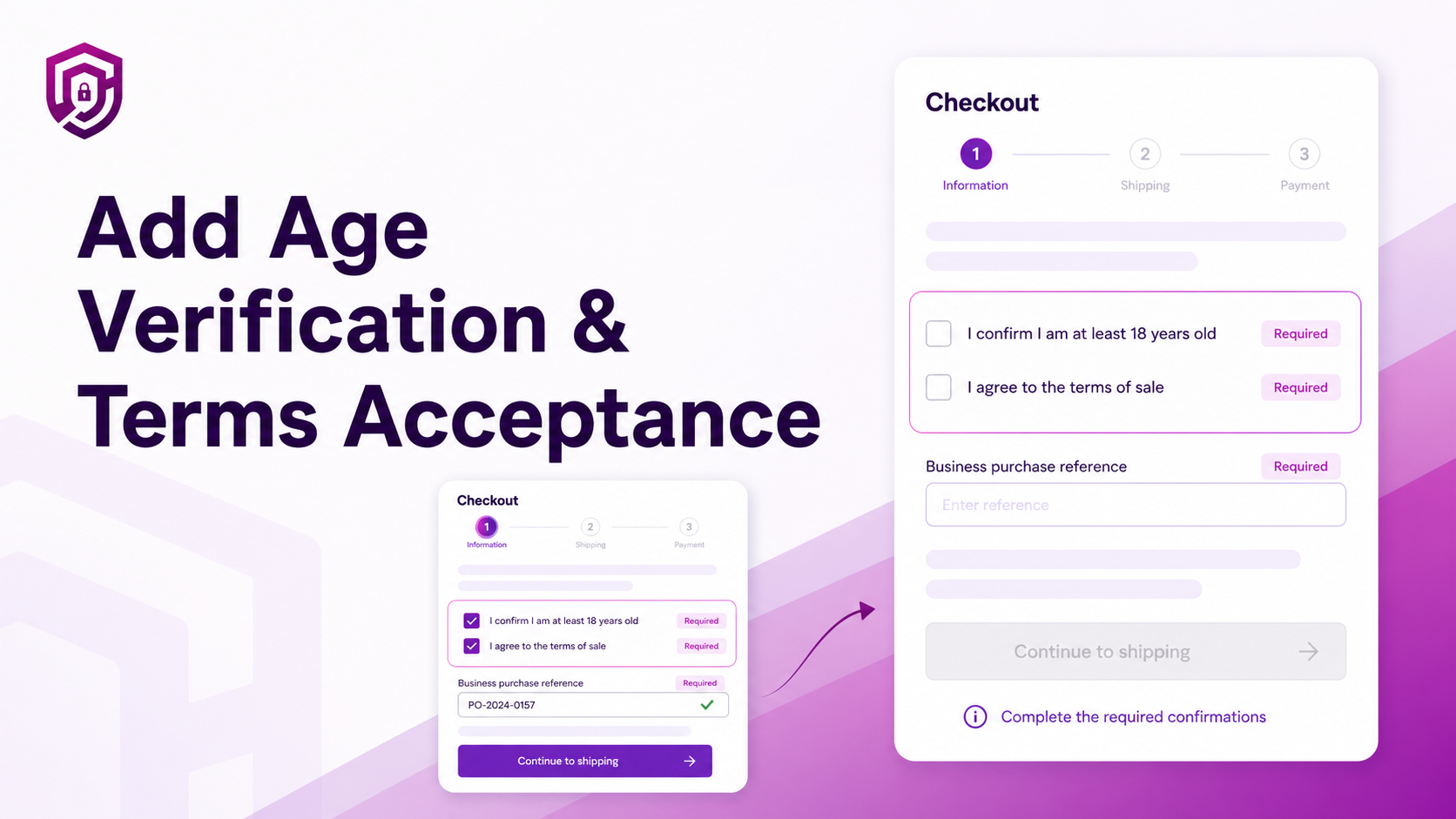
Some purchases require more than a shipping address and payment method.
Depending on the product or merchant policy, buyers may need to:
- Confirm that they meet a minimum age
- Accept sale or delivery terms before completing an order
- Acknowledge a return or exchange policy
- Provide mandatory order information specific to the purchase
- Confirm eligibility before a product can be sold to them
Why a Homepage Pop-Up May Not Be Sufficient
A storefront pop-up asking buyers to confirm their age or accept terms is common. But it has a significant limitation: it can be dismissed at the beginning of the session, long before the buyer reaches checkout.
Placing a confirmation requirement at checkout puts it closer to the transaction. The buyer must actively complete the requirement before the order can proceed — not just close a banner on the homepage.
This creates a clearer buyer action and a cleaner record that the requirement was seen and completed at the point of purchase.
Important: Merchants are responsible for deciding whether their checkout workflow meets applicable laws and industry requirements. OrderGate enables the technical configuration of these requirements; it does not determine whether a particular workflow satisfies legal obligations. If you have compliance concerns specific to your product or market, seek appropriate legal advice.
Three Checkout Requirements Merchants Can Add
1. Age Confirmation
A checkbox that requires the buyer to confirm they meet a minimum age before checkout proceeds.
Example label:
I confirm that I am at least 18 years old.
This is useful for products with age restrictions — alcohol, tobacco, adult content, knives and similar categories — where the merchant wants a buyer-facing confirmation at the point of purchase.
2. Terms Acceptance
A checkbox that requires the buyer to confirm they have read and agree to the merchant's terms.
Example label:
I have read and agree to the terms of sale.
Linking to the full policy document within the label is recommended. Buyers should be able to review what they are agreeing to.
3. Required Custom Information
A text field or checkbox that collects mandatory information the merchant needs before the order can be processed.
Examples:
- Delivery instructions for specific building or access requirements
- Recipient information for gifting or third-party delivery
- A business purchase reference number for B2B orders
- An eligibility confirmation for regulated products
How the OrderGate Setup Works
Age verification, terms acceptance and required custom fields use a two-part configuration:
- Enable the requirement in OrderGate settings — choose the type of requirement (age, terms or custom field), configure the label, and activate the rule
- Add the matching OrderGate UI block in Shopify's checkout editor — open the checkout editor in Shopify admin, locate the OrderGate block corresponding to your requirement, and add it to the checkout layout
Both steps are required. The validation in OrderGate enforces the rule at the server level. The UI block displays the checkbox or field to the buyer during checkout.
If the buyer reaches the payment step without completing the requirement, checkout is blocked and the buyer is prompted to go back and complete it.
Writing Clear Checkbox Language
How the checkbox label is written affects whether buyers understand what they are confirming.
Recommended practices:
- Use plain language — avoid legal phrasing that buyers will not read carefully
- State exactly what the buyer is confirming — do not leave room for ambiguity
- Avoid combining unrelated requirements in one checkbox — if a buyer must confirm age and accept terms separately, use two checkboxes
- Link to the complete policy where appropriate — buyers should be able to access the full text of anything they are agreeing to
- Do not preselect consent checkboxes — the buyer should make an active choice
How to Configure the Requirement
- Enable age, terms or custom-field validation in OrderGate settings
- Enter the buyer-facing label — write the exact text the buyer will see on the checkbox
- Open Shopify's checkout editor in Shopify admin
- Add the corresponding OrderGate block to the checkout layout
- Publish the checkout configuration
- Test checkout without selecting the requirement — confirm that checkout is blocked when the requirement is incomplete
- Confirm checkout proceeds after the requirement is completed — verify the full flow end to end
Related Articles
- How to Block Risky Shopify Checkouts Before Payment
- How to Create B2B-Only Checkout Rules Using Shopify Customer Tags
- How to Set Minimum and Maximum Order Limits in Shopify