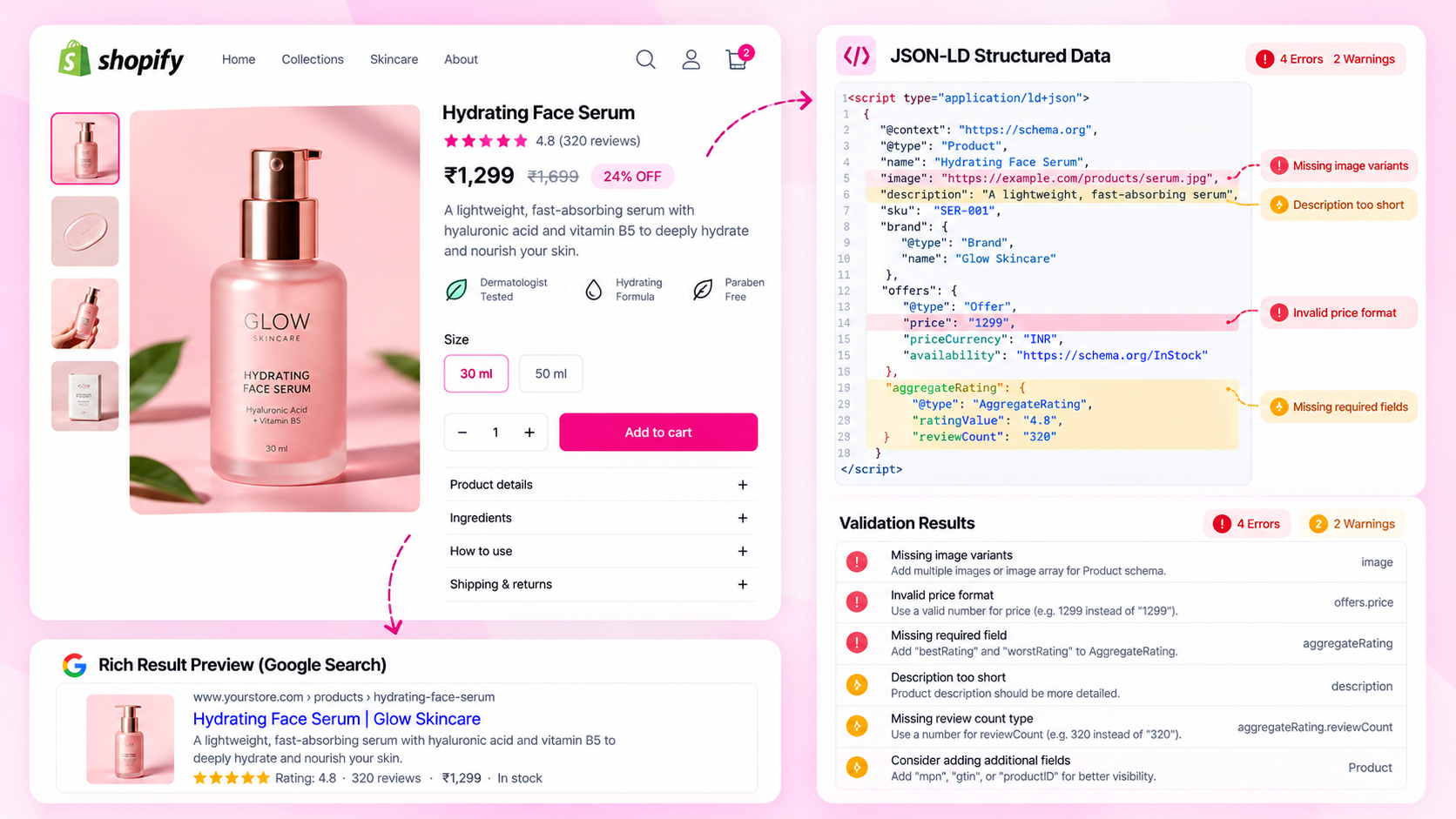
Quick Answer: How Do You Fix Shopify Product Schema Errors?
Inspect the rendered product page, locate Product JSON-LD, validate it with Google's Rich Results Test, compare the structured data with what the customer actually sees on the page, and fix the theme, app, or data source responsible. Re-test the live URL after every change.
What Is Product JSON-LD and Why Does It Matter?
JSON-LD (JavaScript Object Notation for Linked Data) is a format for embedding structured product information inside a page's HTML without affecting the visible layout. When correctly implemented, it tells search engines the product's name, price, availability, images, ratings, and other details in a machine-readable way.
Shopify themes often include Product schema automatically, but errors are common — especially after theme updates, app installations, or bulk catalog changes. A valid schema block can support eligibility for rich results like price and availability snippets in Google Search, which can increase click-through rates. An invalid block does nothing, and in some cases can conflict with other structured data on the page.
Common Shopify Product Schema Problems
Understanding what typically goes wrong helps you know where to look:
| Problem | Common Cause |
|---|---|
| Missing markup entirely | Theme does not include Product schema, or schema is conditional and not firing |
| Malformed JSON | Liquid template syntax error, unclosed quotes, or special characters in product data |
| Price/availability mismatch | Feed data or structured data reflects a different variant than the visible page |
| Duplicate Product objects | Theme schema + SEO app + review app all outputting separate Product blocks |
| Missing required properties | offers block present but price, priceCurrency, or availability missing |
| Wrong image URL | Schema references a CDN-resized image that does not resolve as expected |
Step 1: Inspect the Live Product Page
Always test the rendered page, not the theme source code. Shopify themes render through Liquid and JavaScript, meaning the final HTML may differ from what you see in the code editor.
- Open a representative product URL in an incognito browser window
- Right-click → View Page Source (not Inspect Element, which shows the DOM after scripts run)
- Use
Ctrl+F/Cmd+Fto search forapplication/ld+json - You should find one or more
<script>blocks containing JSON
Test several product types — a simple product, a product with variants, and a product from a secondary collection — because schema errors often only affect certain templates.
Step 2: Validate Structured Data
Copy the JSON-LD block and paste it into one of these tools:
- Google Rich Results Test (
search.google.com/test/rich-results) — shows which rich result features are eligible and flags errors - Schema Markup Validator (
validator.schema.org) — validates structure against the schema.org specification
Read reported errors and warnings separately. A warning does not necessarily make a page ineligible for rich results, but an error usually means a required property is missing or malformed. A block that passes validation can still describe the wrong product if the data values are inaccurate.
Step 3: Compare Markup With the Visible Product
Even valid schema can cause problems if the values do not match what the customer sees. Verify:
| Field | Check |
|---|---|
name |
Matches the product title shown on the page |
image |
Shows the product's main image, not a placeholder |
offers.price |
Matches the price visible for the displayed variant |
offers.priceCurrency |
Correct currency for the storefront |
offers.availability |
Reflects actual in-stock/out-of-stock status |
url |
Points to the canonical product URL |
If the schema shows a price of £49.99 but the page displays £54.99 (because a variant was not selected), the structured data is misleading — search engines may flag this as a mismatch.
Step 4: Find the Source of Duplicate or Conflicting Markup
Duplicate Product JSON-LD blocks are a common issue on Shopify stores with multiple apps installed. Each of these can independently add structured data:
- Your theme's
product.jsonorproduct.liquidtemplate - SEO apps (e.g., Smart SEO, JSON-LD for SEO)
- Product review apps (adding
aggregateRatinginside their own Product block) - Custom scripts added to the theme
To identify the source, search the theme code for application/ld+json and also check each installed app's settings for a "structured data" or "schema markup" toggle. Disable duplicates carefully — confirm which block produces the more complete output before removing one.
Step 5: Re-test After Fixing
After making changes to the theme or app settings:
- Clear any caches relevant to your setup
- Open the product URL in an incognito window (to avoid cached versions)
- Re-run the Rich Results Test on the live URL
- Confirm the error or warning is resolved
- Spot-check 5–10 additional representative products to confirm the fix is consistent
Use Google Search Console's URL Inspection tool for pages already indexed — it shows the last crawled version and can request a recrawl.
How CatalogAI Helps With Schema Issues
CatalogAI scans your Shopify catalog and identifies products where Product JSON-LD is missing, invalid, or where structured data values do not match the visible storefront. Instead of manually checking individual pages, you get a prioritized list of schema problems across your entire catalog.
A Practical Product Schema QA Checklist
- At least one Product JSON-LD block is present on each product page
- JSON syntax is valid (no parse errors)
-
name,image,offers.price,priceCurrency, andavailabilityare all present - Price and availability match the visible page for the default variant
- No duplicate Product blocks from multiple sources
- Canonical URL is referenced correctly
- Schema passes Google Rich Results Test without errors
- Representative templates (simple, variant, secondary collection) all tested
Frequently Asked Questions
Does every Shopify product need JSON-LD?
Structured data is not required for a page to rank, but it is useful for qualifying for rich results features that can increase visibility and click-through rates. Most Shopify themes include it by default — the more common problem is that it exists but contains errors.
Does valid schema guarantee rich results?
No. Google decides whether to show rich results based on its own quality signals. Valid, accurate structured data makes a page eligible, but eligibility does not guarantee display.
Can multiple apps create duplicate markup?
Yes. SEO apps, review apps, and themes can each add their own Product JSON-LD blocks. Search engines may try to reconcile duplicates, but conflicting data (such as two different prices) can cause unpredictable behaviour.
Should I fix warnings as well as errors?
Review what each warning means. Some warnings indicate optional properties that could improve rich result eligibility. Others are informational. Errors — particularly missing required properties — should be fixed first.
How do I know which app is generating the schema?
Search the theme's Liquid templates for application/ld+json. Also check each installed app's settings for a structured data or schema markup option. You can temporarily disable an app's schema output to confirm which block it generates.
Related Articles
- How to Audit 1,000 Shopify Product Pages Without Checking Them Manually
- The Shopify Product SEO Audit Checklist: 25 Things to Check Before Launch
- Why Shopify Product Pages Aren't Getting Indexed: A Troubleshooting Guide