Quick Answer: How Should Shopify Product Variants Be Handled for SEO?
Review how variant URLs are generated, which pages are intended to be canonical, and whether each URL provides a distinct purpose for shoppers or search engines. Do not assume every variant URL is an error or that all variants must be indexed separately. Inspect your actual store behavior rather than applying a generic rule.
How Shopify Variant URLs Work
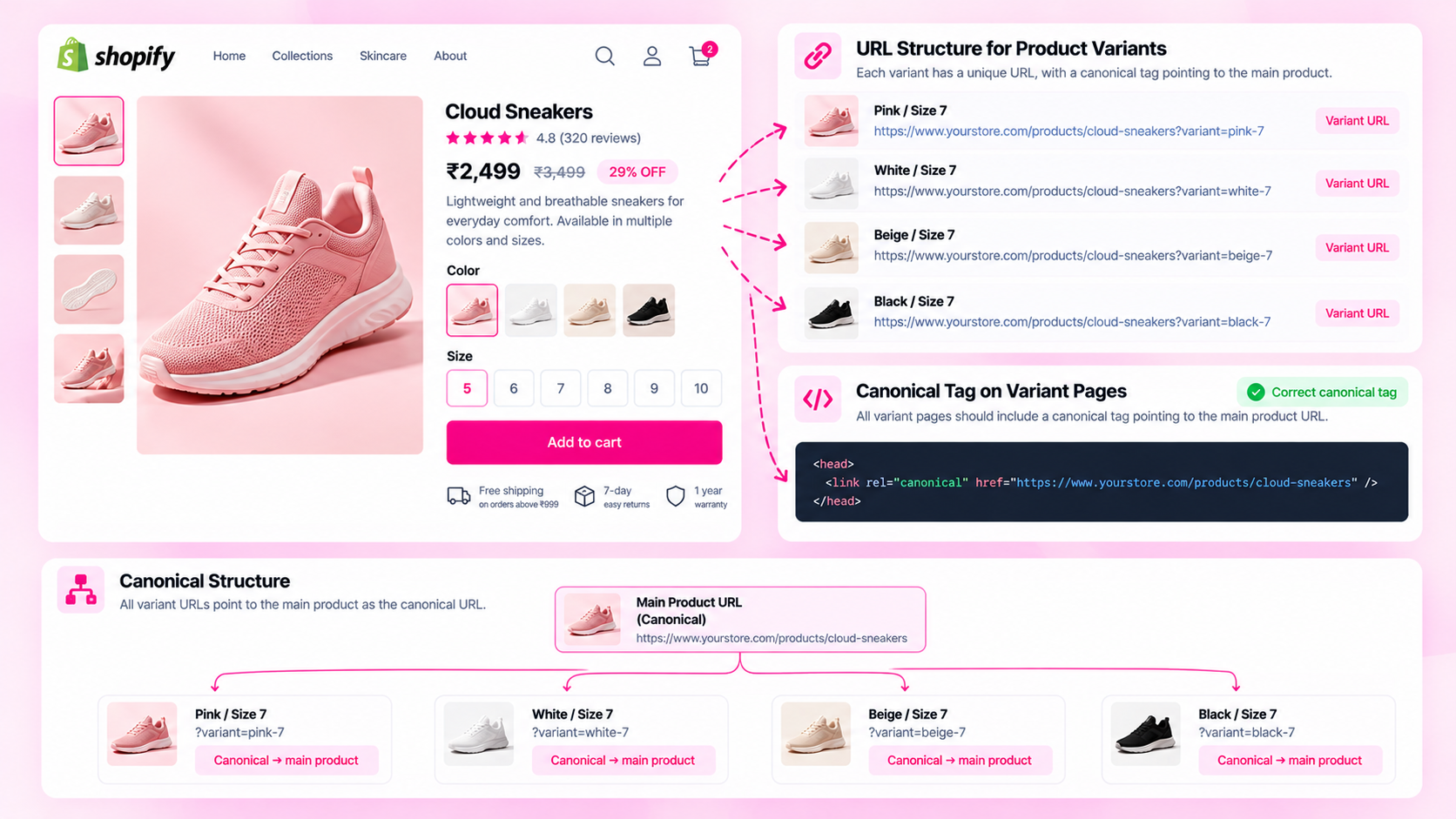
In Shopify, each product has a base URL (/products/product-handle). When a shopper selects a variant (size, color, material), Shopify may update the URL to include a variant parameter:
/products/product-handle?variant=12345678
This means the same product can be accessed at multiple URLs — the base URL, and one URL per variant. By default, Shopify sets a canonical tag on variant URLs pointing back to the base product URL. This signals to search engines that the base URL is the preferred version to index.
Whether this default behavior is correct for your store depends on your catalog structure and intent.
When Similar URLs Need Review
Not every variant URL is a problem. Review your implementation when:
- Collection paths create duplicate product URLs: Shopify allows products to be accessed via collection paths (
/collections/shirts/products/blue-shirt) as well as the direct product path (/products/blue-shirt). If canonical tags are not correctly set, search engines may index collection-pathed versions instead of — or in addition to — the intended URL. - A theme or app is generating unexpected canonical URLs: Check the rendered
<link rel="canonical">tag on actual product pages, not just the Shopify Admin setting. - Variant parameters appear in the sitemap: If variant URLs (with
?variant=parameters) are included in the XML sitemap, that's worth reviewing. Shopify typically includes only the base product URL. - Google Search Console shows the wrong canonical: In URL Inspection, if Google's selected canonical differs from your intended one, investigate what's causing the discrepancy.
How to Audit Canonical Tags
Canonical tag auditing must be done on the rendered page, not just in Shopify Admin:
- Open a product page in the browser
- Right-click → View Page Source (or use Inspect → Elements)
- Search for
rel="canonical"in the<head> - Record the canonical URL shown
- Compare it against the intended URL for this product
- Repeat for variant URLs by appending
?variant=VARIANTIDto the base URL - Check several products across different collections and product types
Common findings:
- Canonical correctly pointing to the base product URL ✓
- Canonical pointing to a collection-path URL when the base URL is preferred ✗
- Canonical tag missing entirely ✗
- Canonical pointing to a completely different product ✗ (rare, but happens after theme changes)
When a Variant May Need a Distinct Landing Experience
In most cases, consolidating variant URLs under a single canonical is correct. Exceptions worth considering:
- A variant has distinct search demand: If "blue merino wool sweater" and "grey merino wool sweater" both have significant search volume with different buyer intent, and each has substantially different content (images, descriptions, availability), a separate product may be more appropriate than a single variant.
- A variant is meaningfully different in features or use: A product available in both "standard" and "heavy-duty" configurations, where the configurations serve different use cases, may warrant distinct product pages rather than a single product with variants.
These decisions should be based on actual store architecture and search behavior — not on an automatic rule that all variants must be separate pages.
Common Mistakes to Avoid
- Canonicalizing unrelated products together: Grouping two different products under a single canonical because they share similar descriptions is incorrect. Canonical tags should point to the preferred URL for the same content, not to a different product.
- Removing useful variant links without testing: If you remove the ability for shoppers to access specific variant URLs, verify that the variant selection still works correctly on the parent product page.
- Treating URL parameters as automatic duplicate content: A URL parameter doesn't mean duplicate content. What matters is what the page actually shows and whether there's meaningful differentiation or redundancy.
- Assuming Shopify's default canonical is always correct: It usually is, but theme modifications, apps, and non-standard catalog structures can override or break canonical tag behavior. Always verify on the rendered page.
Frequently Asked Questions
Do Shopify variants create duplicate content? They can create multiple URLs that show very similar content — the same product with a different variant selected. Whether this constitutes harmful duplicate content depends on how significantly the page content differs between variants and how the canonical tags are configured. The default Shopify behavior consolidates this correctly in most cases.
Should canonical URLs include variant parameters? Generally, no. The base product URL (without variant parameters) is typically the intended canonical. Variant-parameter URLs should canonicalize back to the base URL, which is Shopify's default behavior.
Do canonical tags guarantee a chosen canonical? No. Canonical tags are signals, not instructions. Google may select a different canonical based on its own analysis — particularly if another URL has more internal links or appears more frequently in the sitemap. If your Google Search Console canonical doesn't match your tag, investigate the cause rather than assuming the tag is wrong.
How do collection paths affect canonical tags?
Shopify allows products to be accessed via both /products/handle and /collections/collection-handle/products/handle. Both paths serve the same product. The canonical tag should point to one consistent URL (typically the base /products/handle path) across all access paths.
Related Articles
- Why Shopify Product Pages Aren't Getting Indexed: A Troubleshooting Guide
- The Shopify Product SEO Audit Checklist: 25 Things to Check Before Launch
- How to Audit 1,000 Shopify Product Pages Without Checking Them Manually