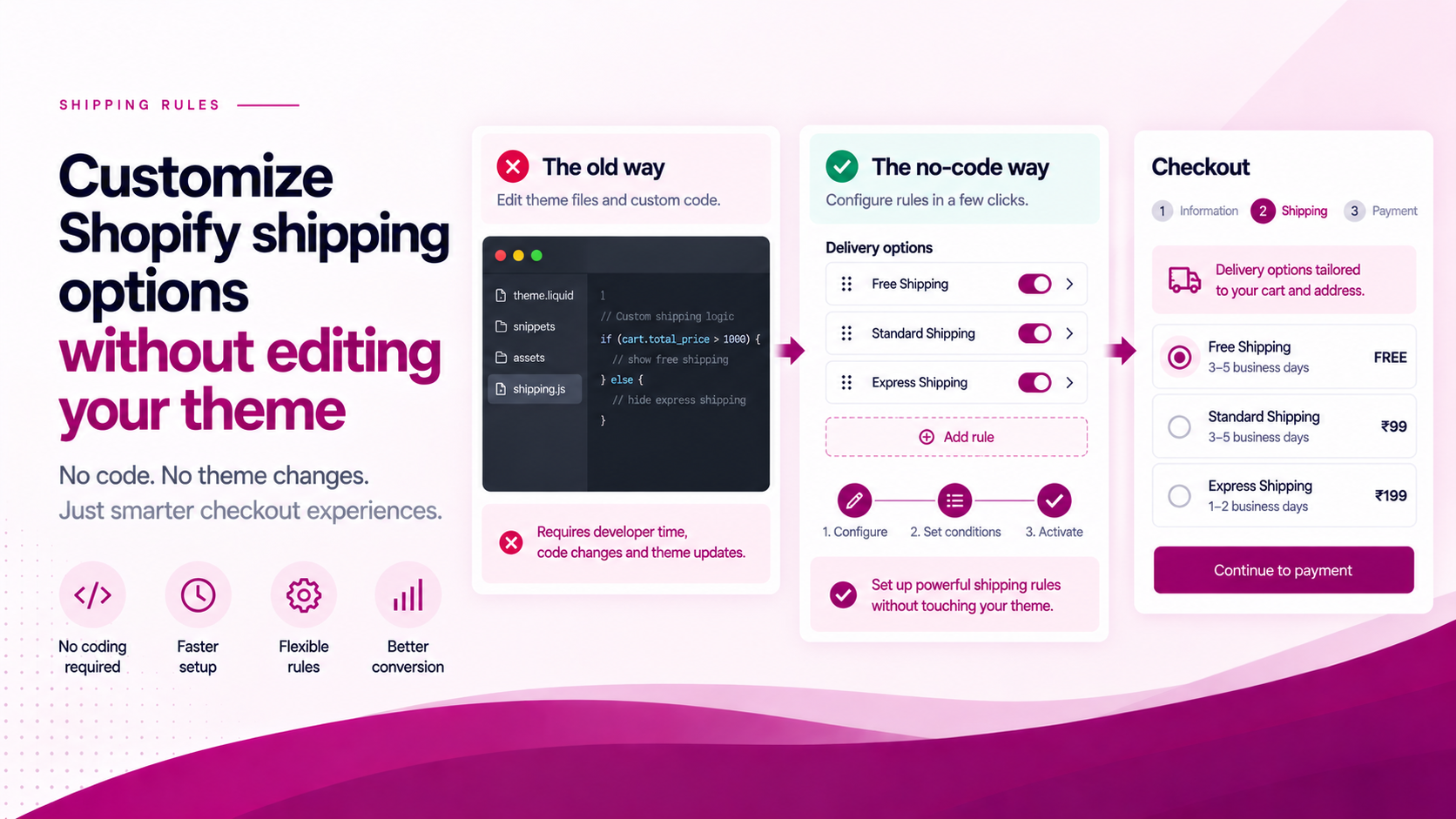
Shipping options live in checkout, not in the storefront theme.
That matters because many merchants try to solve checkout delivery behaviour by editing theme files. Theme code is not the right layer for every shipping problem — and for delivery option presentation, it is rarely the right layer at all.
What Merchants Commonly Want to Change
Most delivery customization requests fall into a small set of patterns:
- Put Free Shipping first — surface the most attractive option at the top of the list
- Hide Express for a restricted address — prevent ineligible options from appearing
- Hide a method for a customer segment — wholesale or B2B accounts see different options
- Rename a generic delivery option — replace a carrier label with something customer-readable
- Show a preferred method first — prioritise a specific carrier or service by default
These are delivery-option presentation problems. The solution is not in your theme — it is at the checkout function layer.
Shopify's Native Capability
Shopify's Delivery Customization Function API is specifically designed to rename, sort and hide delivery options at checkout. The logic runs as backend checkout logic, not as storefront JavaScript.
That distinction is important:
- Storefront JavaScript can be blocked by browsers, slow down page load, or fail silently
- Checkout Functions run server-side, consistently, at the point of checkout — not on the page
For delivery presentation rules, Functions are the correct layer.
Where ShipSort Fits
ShipSort provides a merchant-facing interface for supported delivery customization rules. The setup workflow is:
- Install the app — ShipSort connects to your Shopify store
- Read available delivery options — your existing rates are imported automatically
- Create the desired rule — ordering, hiding or conditional logic
- Test the checkout — verify the rule behaves correctly in a test order
- Activate the rule — the Function becomes live in checkout
No theme modification is required for the ShipSort workflow. The rule operates at the Shopify Functions layer, not in the storefront.
Keep the Underlying Shipping Configuration Intact
If your carrier rates are correct, you do not need to rebuild them to change checkout presentation.
The customization layer controls how those delivery options appear — their order, visibility and labels. The carrier configuration remains the source of the rate itself. Separating these two concerns keeps both easier to maintain.
Test Before Activating
Delivery rules should be tested before going live. A rule that works for a standard cart may behave unexpectedly at the boundary. Test:
| Scenario | Why it matters |
|---|---|
| Normal cart | Confirms baseline behaviour |
| Free-shipping cart | Confirms the preferred option appears first |
| Qualifying condition | Confirms the rule fires when it should |
| Non-qualifying condition | Confirms the rule does not fire when it should not |
| Mobile checkout | Confirms the presentation is correct on smaller screens |
| Desktop checkout | Standard confirmation |
| Multiple delivery groups | If your setup supports split fulfilment |
A checkout rule is only useful if the edge cases behave predictably.
The Goal
The objective is not to make shipping more complicated.
It is to make the checkout show the right delivery choices for the right customer — without requiring theme changes, custom development, or a rebuild of your carrier configuration.
Related Articles
- How to Create Conditional Shipping Rules in Shopify
- Shopify Shipping Rate Customization: What Merchants Can Control
- How to Reorder Shipping Methods in Shopify