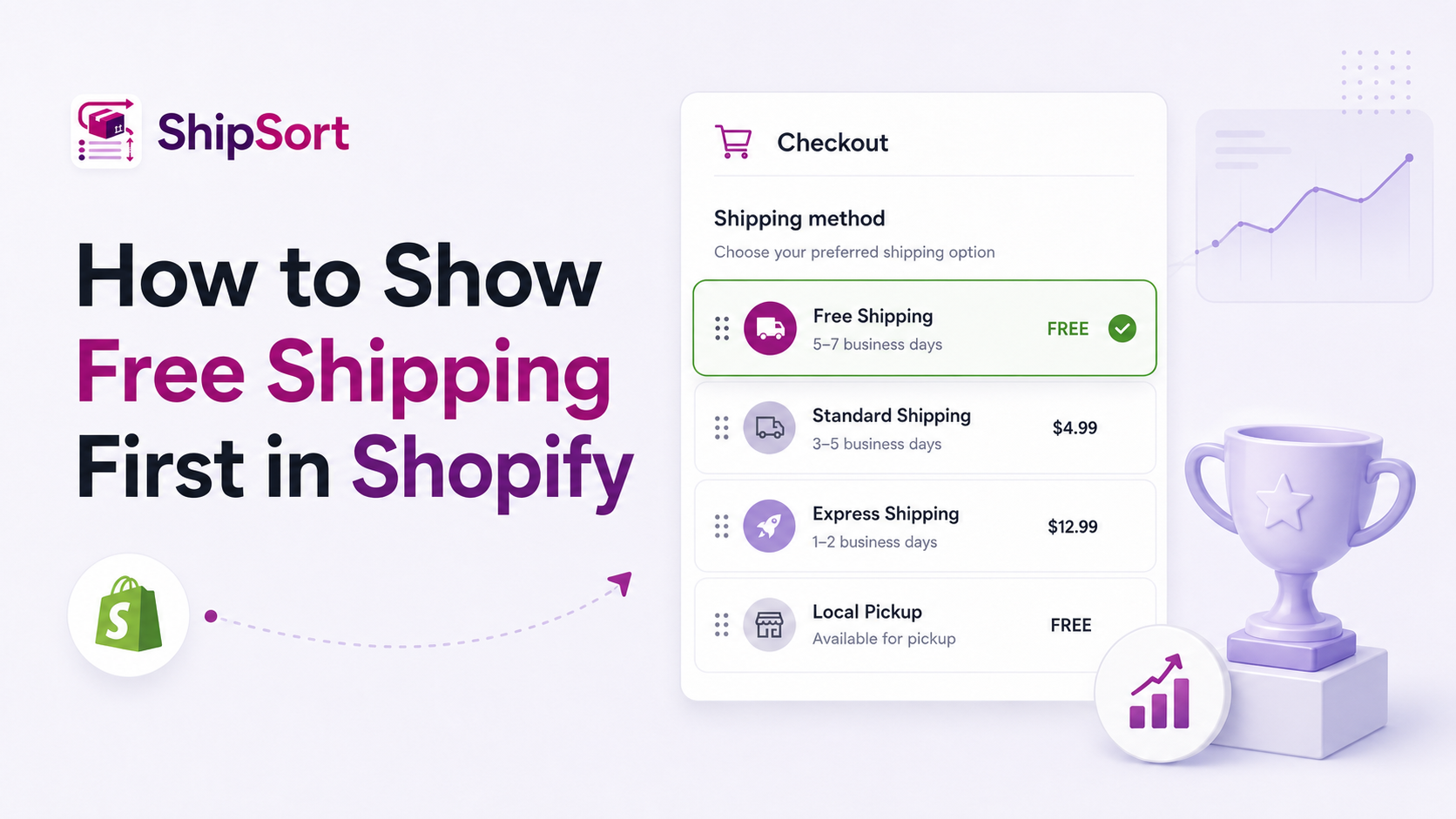
When customers qualify for Free Shipping, it is one of the most powerful conversion incentives. However, if Shopify places Free Shipping at the bottom of the list because of alphabetical sorting, customers may overlook it initially, causing unnecessary friction.
Ensuring your "Free Shipping" rate appears as Position 1 is a simple tweak that has a major impact on your conversion rates.
Why Position 1 Matters for Free Shipping
- Instant Positive Reinforcement: The moment customers see "$0.00" at the top, their purchase intent peaks.
- Reduces Checkout Abandonment: Hiding free shipping under paid express options can confuse buyers, leading to abandoned checkouts.
- Simplifies Decision Making: The path of least resistance is usually the first option. Highlighting the free rate immediately speeds up completion.
Setting Up Free Shipping First on Shopify
With ShipSort, prioritizing free options is straightforward:
- Activate the Free Shipping Prioritization Rule: In the ShipSort dashboard, enable the default rule to keep free methods at the top.
- Dynamic Check: The app will continuously inspect rates during checkout. Whenever a rate price drops to
0.00, ShipSort moves it to the top position. - Save Changes: Hit save to publish the rule instantly to your Shopify checkout.
This configuration helps e-commerce stores improve user experience and lower abandoned checkouts immediately.