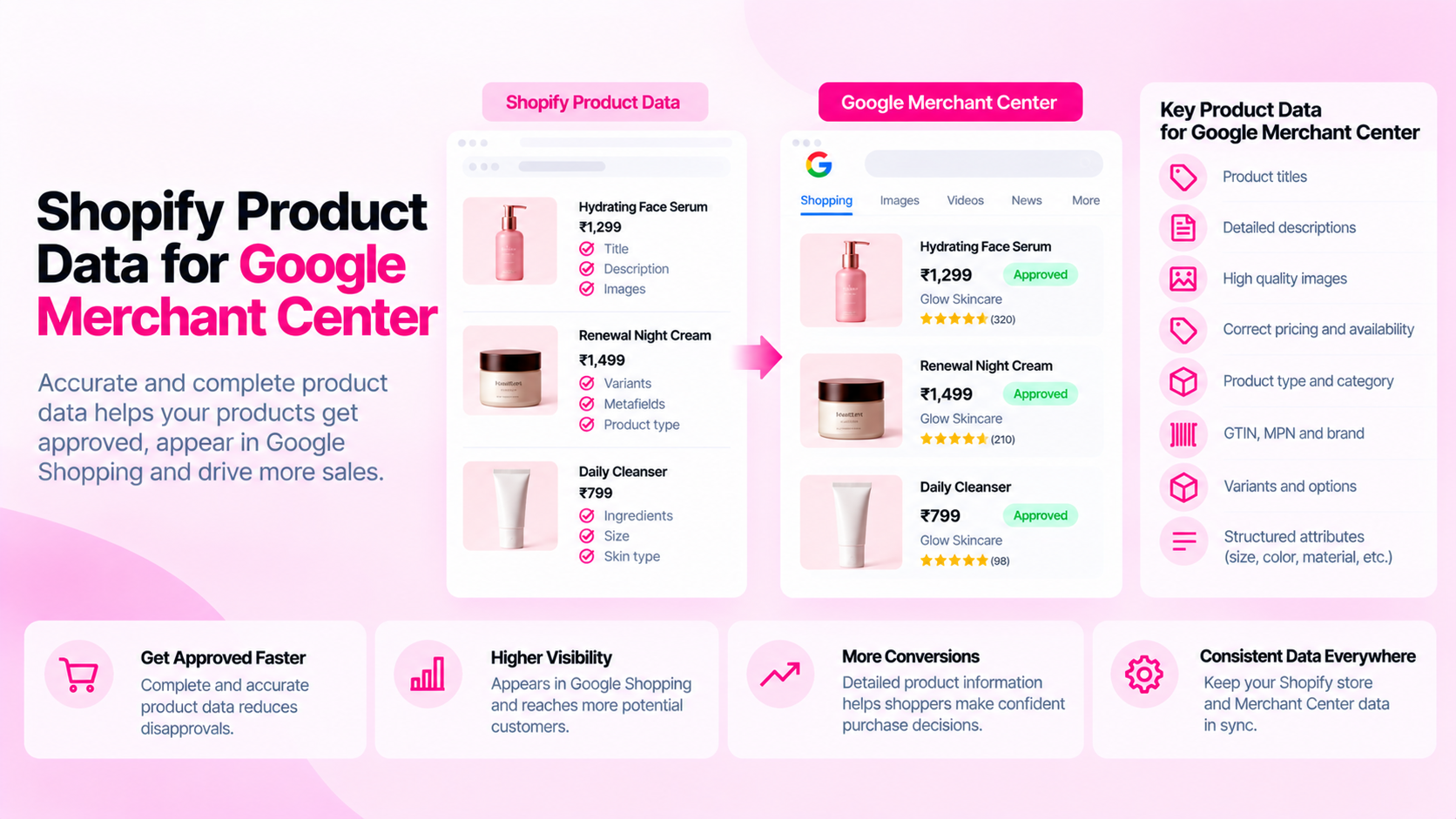
Quick Answer: How Do You Prepare Shopify Product Data for Google Merchant Center?
Review the current Merchant Center requirements for your target country and product type, then check that product titles, descriptions, images, price, availability, identifiers (GTIN, brand, MPN), and variant attributes are accurate in Shopify. Connect a feed, review item-level diagnostics, and fix specific disapprovals rather than guessing at causes.
Why Feed Preparation Starts in Shopify Admin
Google Merchant Center does not read directly from your Shopify Admin — it reads from a feed (a structured file or API connection) that extracts and formats your product data. Problems in Merchant Center almost always originate upstream: either the data in Shopify Admin is incomplete, or the feed is mapping fields incorrectly.
Before troubleshooting Merchant Center disapprovals, confirm that the source data in Shopify is accurate. A corrected metafield value in Shopify Admin will not fix a Merchant Center error until the feed refreshes.
Step 1: Review Current Merchant Center Requirements
Google's requirements change. Before preparing data, check the official Google Merchant Center Help for:
- Required attributes for your product type and target country
- Conditional requirements (e.g., apparel requires colour, size, gender; food may require ingredients)
- Policy restrictions on titles, descriptions, and promotional language
- Image requirements (minimum size, no watermarks, white background for apparel)
Do not rely on a static checklist from an older source — requirements for specific categories and markets have become more detailed over time.
Step 2: Optimise Product Titles for Shopping
Google Shopping titles appear in ad units and organic Shopping listings. They have a character limit (typically 150 characters) but should front-load the most important information:
| Product type | Recommended title structure |
|---|---|
| Apparel | Brand + Gender + Product Type + Colour + Size |
| Electronics | Brand + Model + Key Spec + Product Type |
| Food | Brand + Product Name + Quantity/Volume |
| Home goods | Brand + Product Name + Material + Dimension |
Examples:
- ✅
Acme Men's Slim Fit Chinos - Navy - W32 L32 - ❌
Stylish trousers on sale - great for any occasion!
Titles with specific, descriptive attributes match better against shopping queries. Promotional language ("sale," "discount," "best") is often disallowed and can cause disapprovals.
Step 3: Review Product Descriptions
Merchant Center descriptions are used for contextual matching. They should:
- Accurately describe the product
- Include relevant specifications and use cases
- Avoid promotional language where policy disallows it
- Not repeat the product title verbatim
Descriptions do not appear prominently in Shopping ads but are used in contextual matching and some surfaces. Accurate descriptions reduce the risk of policy issues.
Step 4: Check Images Against Merchant Center Requirements
Images are among the most common sources of disapprovals:
| Requirement | What to check |
|---|---|
| Minimum resolution | Check Google's current minimum for your product type |
| No watermarks or overlays | Remove promotional overlays or text from product images |
| Background requirements | Apparel: white or light background for main image |
| URL accessibility | Image URL must be publicly accessible without login |
| Image matches product | Lifestyle images may not be accepted as the main image for some categories |
In Shopify, images are served from Shopify's CDN. Confirm the image URL in your feed resolves correctly and loads without errors.
Step 5: Verify Price, Currency, and Availability
Price and availability mismatches between feed and landing page are a common cause of disapprovals:
- Price must match the landing page for the specific variant being listed
- Currency must match the target country's currency
- Availability must reflect actual in-stock status — "in stock" for a sold-out product will cause a mismatch disapproval
- Sale prices require the
sale_priceandsale_price_effective_dateattributes to be set correctly, not just a modifiedpricefield
Check that your feed refresh frequency keeps availability accurate. A feed that updates once per day can show out-of-stock items as available for up to 24 hours after they sell out.
Step 6: Add Required Identifiers
For most product categories, Google requires unique product identifiers:
| Identifier | What it is | When required |
|---|---|---|
| GTIN | Global Trade Item Number (barcode) | Most branded products |
| Brand | The manufacturer or brand name | Almost always required |
| MPN | Manufacturer Part Number | When GTIN is unavailable |
If a product genuinely has no GTIN (handmade items, custom products, unbranded goods), set identifier_exists: false in the feed. Do not leave the field blank or submit an incorrect GTIN.
In Shopify, GTINs are stored in the Barcode field on each variant. Confirm the feed app reads from this field.
Step 7: Map Variant-Level Data Correctly
Each variant in Google Shopping is treated as a separate product listing. Common variant mapping issues:
- Feed maps to the parent product price instead of the variant-specific price
- Colour and size attributes are missing or inconsistent (required for apparel)
- Variant images are not mapped (Google should see the image for the specific variant, not the parent product image)
- Variant-specific GTINs are not included
Review the feed app's variant configuration to confirm each attribute is mapped at the variant level, not the parent level.
Step 8: Read and Act on Diagnostics
After submitting the feed, review item-level diagnostics in Merchant Center:
- Navigate to Products → All Products and filter by "Disapproved" or "Limited"
- Click into individual product disapprovals to see the specific error message
- Trace each error back to its source (Shopify Admin field, feed mapping, or policy issue)
- Correct the issue and trigger a feed refresh
- Monitor the diagnostic report after the next feed crawl to confirm resolution
Do not try to fix all errors simultaneously without understanding each one. Batch fixes by error type — all "price mismatch" errors share the same root cause and fix.
How CatalogAI Helps With Feed Preparation
CatalogAI audits your Shopify catalog before feed export and flags common Merchant Center preparation issues: missing GTINs, blank material or colour metafields, products without images, and availability inconsistencies. Resolving these in Shopify before the feed runs reduces the volume of Merchant Center diagnostics to work through.
Frequently Asked Questions
Does complete Shopify data guarantee Merchant Center approval?
No. Google also applies policy rules, quality thresholds, and landing page validation. Accurate data reduces disapprovals caused by data issues but cannot override policy decisions.
How often should the feed refresh?
For stores with frequent inventory changes, daily refreshes are a minimum. Real-time or hourly feeds reduce availability mismatch disapprovals. Check your feed app's supported refresh options.
What if my products don't have GTINs?
For handmade, custom, or unbranded products where no GTIN exists, use identifier_exists: false. Do not submit placeholder values or made-up numbers.
Where do I find the official requirements?
Use Google's official Merchant Center Help documentation. Requirements differ by country and product category — what applies to US apparel may not apply to UK food products.
Related Articles
- Shopify Product Feeds vs Your Storefront: Why Product Data Can Differ
- Shopify Product Data Quality: 12 Errors That Accumulate as Your Catalog Grows
- The Shopify Product SEO Audit Checklist: 25 Things to Check Before Launch