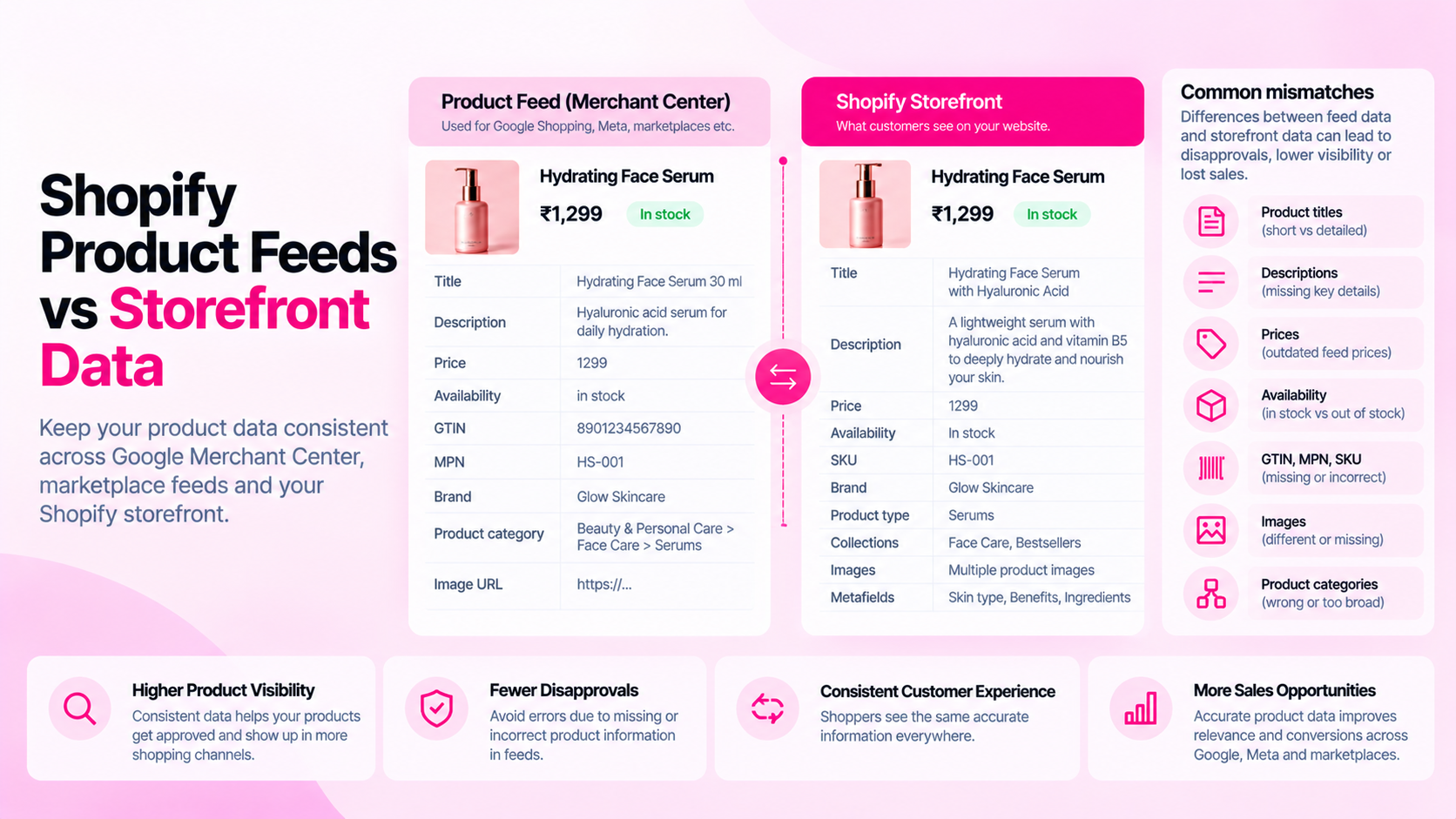
Quick Answer: Why Can Shopify Product Feeds Differ From the Storefront?
Feeds may use different field mappings, update schedules, variant selection logic, app settings, or data sources. Compare the source product record in Shopify Admin, the visible storefront page, and the feed output to identify where the mismatch begins. Each layer in the data path — Admin, theme, feed app, destination — can introduce discrepancies.
What Is a Product Feed?
A product feed is a structured export of product data shared with a downstream platform — Google Merchant Center, Meta Catalog, Pinterest, comparison shopping engines, or an affiliate network. Each destination has its own field requirements, format specifications, and update validation.
Unlike your storefront, a feed is a snapshot. Depending on the feed app and destination, that snapshot may be hours or even days old. A product updated in Shopify Admin at 9am may not appear updated in Merchant Center until the nightly sync at 11pm.
Common Causes of Mismatches
| Cause | Where it originates |
|---|---|
| Stale feed refresh | Feed app hasn't synced since the last Shopify update |
| Field mapping error | Feed app is reading the wrong field (e.g., metafield instead of description body) |
| Wrong variant selected | Feed is pulling data for the wrong variant configuration |
| Currency or tax rule | Feed price excludes tax; storefront price includes it |
| Availability lag | Out-of-stock update in Shopify hasn't propagated to feed |
| Missing identifier | GTIN or MPN absent in Shopify; feed sends blank or placeholder |
| App-specific transformation | Feed app is applying a title template that overrides Shopify's title |
Step 1: Choose a Specific Product Example
When investigating a mismatch, avoid comparing across different products or variants. Pick one specific product and variant and document:
- The exact product URL and variant selected
- The title, price, availability, and image shown on the storefront
- The title, price, availability, and image showing in the feed or destination platform
- The time of inspection (feed values may change between checks)
Without this specificity, you may compare a "size L, black" variant on the storefront against a "size M, blue" variant in the feed and mistake a data difference for a sync error.
Step 2: Compare Key Fields Side by Side
| Field | Check for... |
|---|---|
| Title | Exact match including any feed-side transformations |
| Description | Full text vs. truncated or template-generated version |
| Price | Same currency, tax treatment, and variant-specific value |
| Availability | In stock / out of stock / preorder — must match storefront at the same moment |
| Images | Same image URLs; variant image matching the selected variant |
| GTIN / Brand / MPN | Present in both; consistent format |
| Category attributes | Material, size, color — present in feed with same values as storefront |
If a field matches, cross it off. Focus investigation on fields that don't match.
Step 3: Trace the Data Path
Once you've identified which field differs, follow the path upstream:
- Shopify Admin: What does the field show in the product editor for this specific variant?
- Feed app settings: Is the field mapped correctly? Is there a transformation rule or template applied?
- Feed output: Does the exported value match what you expected from the mapping?
- Destination processing: Is the destination applying any additional normalization, truncation, or validation?
The fix location depends on where the problem starts. If the Shopify Admin value is wrong, fix it there. If the mapping is incorrect, update the feed app configuration. If the destination is reformatting the value unexpectedly, adjust the input to match its expectations.
Step 4: Revalidate After Changes
After making a correction:
- Trigger a manual refresh or sync in the feed app if available — don't wait for the next scheduled sync if you need to verify quickly
- Wait for the destination to reprocess the update — this can take minutes or hours depending on the platform
- Confirm the corrected value appears in the destination's item view
- Verify the storefront still shows the same value — ensure the fix didn't introduce a discrepancy in the other direction
Don't assume the update is live until you've confirmed it at the destination level.
Frequently Asked Questions
Does the storefront always match the feed? No. The storefront reflects the current state of Shopify at the time of page load. Feeds are snapshots that may not update in real time. Depending on the feed app, there may be a scheduled sync that runs every few hours or once per day.
Can a feed app transform data in ways I don't expect? Yes. Many feed apps allow template-based field mappings, conditional rules, and value substitutions. A title that looks correct in Shopify Admin may appear differently in the feed because a template is prepending the brand name or truncating at a character limit. Review the feed app's mapping configuration, not just the Shopify source.
Will fixing feed data guarantee product approval in Merchant Center? No. Destination platforms also apply their own policy validation, format requirements, and eligibility checks. Correcting a data mismatch removes one cause of disapproval but does not guarantee the item will be approved.
How often should feed data be audited? At minimum, audit after major catalog changes (new product launches, bulk price updates, promotions) and after feed app configuration changes. For stores with high change velocity, a weekly feed spot-check against the storefront is practical.
Related Articles
- How to Prepare Shopify Product Data for Google Merchant Center
- Shopify Metafields vs Product Descriptions: Where Should Product Specifications Live?
- Shopify Product Data Quality: 12 Errors That Accumulate as Your Catalog Grows