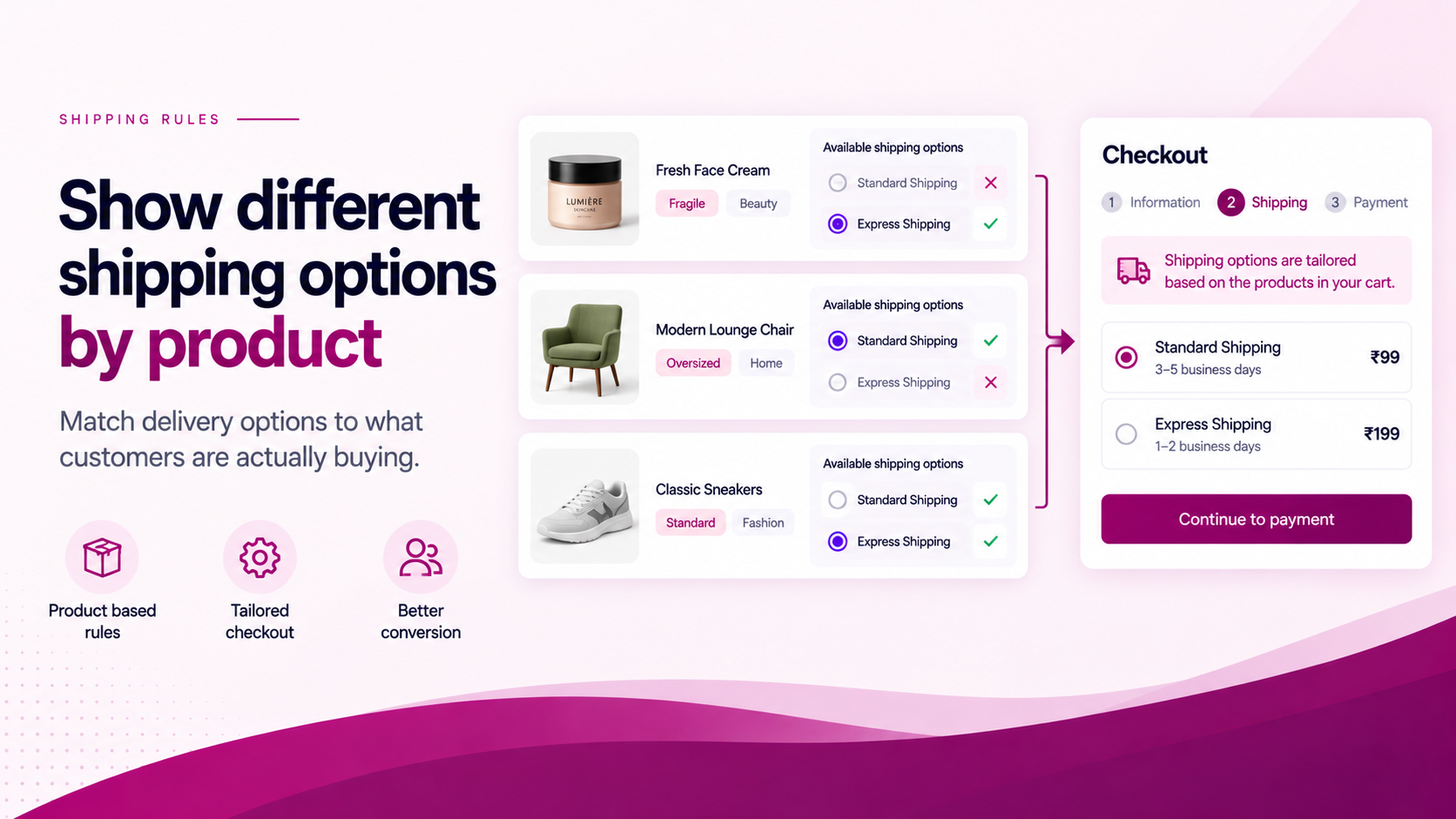
Different products can require different delivery economics.
An apparel order may qualify for standard and express shipping. A perishable product may require a specific delivery method with a tighter window. An oversized product may not be eligible for the same carrier service as a lightweight item. The customer should not see options that cannot actually fulfil the order in their cart.
Start with the Product Rule
Before configuring anything, define the relationship between product type and delivery option:
| Product / Collection | Condition | Delivery outcome |
|---|---|---|
| Perishable products | Must use timed delivery | Hide standard shipping |
| Oversized items | Cannot use express | Hide express option |
| Premium collection | Preferred positioning | Show preferred delivery first |
| Standard apparel | All methods eligible | No restriction |
These are examples. The correct rule depends entirely on your fulfilment setup and carrier agreements.
How the Logic Works
Shopify's Delivery Customization Function API supports hiding, sorting and renaming delivery options at checkout. The Function can receive cart and product data needed for product-level rules — so the logic runs at checkout rather than relying on storefront theme code.
ShipSort is designed to make these conditional delivery-option rules easier to configure without custom code.
Common product signals that can drive the rule:
- Product tag — e.g.
perishable,oversized,fragile,express-eligible - Product type or vendor — for category-level rules
- Collection membership — for curated product groups
Product tags are usually the most maintainable signal. Adding a tag to a new product is simpler than updating a rule with individual product IDs.
Mixed Carts Need Special Attention
The most complex scenario is a cart containing products with different delivery requirements.
Consider:
- Product A (apparel) can use express delivery
- Product B (perishable) requires timed delivery only
If both are in one cart, what should happen?
Possible business rules:
- Restrict to the most constrained method — show only delivery options that can fulfil every item in the cart
- Block the incompatible method — if express cannot fulfil the perishable item, hide it regardless of other items
- Use Shopify's delivery groups — Shopify supports checkouts with multiple delivery groups, which can allow items to be fulfilled separately
Do not assume one shipping method applies to every possible cart combination. Test explicitly.
Test the Rule
Create test carts for each relevant scenario before activating the rule:
| Scenario | Expected result |
|---|---|
| Eligible product only | Normal delivery options |
| Restricted product only | Restricted delivery options |
| Mixed cart (restricted + eligible) | Defined by business rule |
| Multiple quantities of restricted product | Same as single restricted |
| Discounted restricted product | Rule still applies |
| Different shipping addresses | Confirm behaviour |
Then confirm the checkout delivery options for each scenario.
Keep the Carrier Configuration Separate
A product-level delivery customization rule does not replace your carrier or shipping-profile configuration. It changes the presentation or availability of delivery options at checkout — the underlying rates are still determined by your Shopify shipping settings and carrier agreements.
That distinction should remain clear. If a delivery option is missing because the carrier genuinely does not serve the destination, the fix is in the shipping profile. If the option exists but should be hidden for a specific product, that is where ShipSort's conditional rules apply.
Related Articles
- How to Hide Shipping Methods by Address or Cart Conditions
- How to Rename Shopify Shipping Methods
- How to Create Conditional Shipping Rules in Shopify